World of Level Design™
Tutorials to Becoming the Best Level Designer and Game Environment Artist (since 2008)
Welcome to "WoLD Insider" newsletter issue #10.
WoLD Insider Issue #10 contains - UE5 tutorials, tips, techniques and getting started with Unreal Engine.
Every single "WoLD Insider" newsletter features level design and game environment art advice, tips, ideas, inspiration, links, resources and updates about World of Level Design. "WoLD Insider" is EXCLUSIVE to you as WoLD subscriber.
As many of you already know UE5 has been released. So this version is all about Unreal Engine 5.
Following Issue #10 of "WoLD Insider" contains:
- UE5: How to Create Your First Project and Open the Editor
- UE5: Learn to Re-Create Standard Map Template Lighting from Scratch
- UE5: How to Disable Auto-Exposure (Eye-Adaptation) From Your Scene Tutorial
- UE5: Are There Still BSP Brushes and Where Can I Find Them? (UE5.0+)
- Maya/UE5: How to Match Grid Size and Dimensions in Maya to UE5 – EXPLAINED
- UE5/Maya Breakdown: Creating Modular Steel Beams and Supports from O'hara Airport Terminal
- Resources on Migrating Projects from UE4 to UE5
UE5: How to Create Your First Project and Open the Editor
To launch the Unreal Editor you need to have a project created. Follow this tutorial to create your first project and open the Unreal Engine editor.
UE5: Learn to Re-Create Standard Map Template Lighting from Scratch
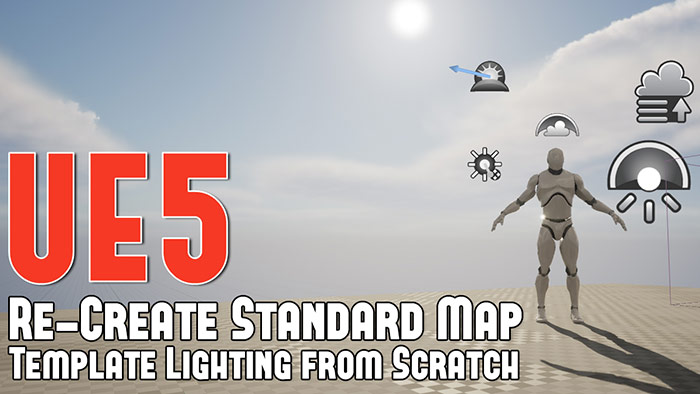
In this tutorial you will learn how to recreate the standard map template with all the lighting actors that you need to make it work and a UE Mannequin model to judge scale as you build environments.
So why do you need to recreate the standard map template? This is for you to understand what actors need to be inserted to make your initial level work. This is how Epic Games has their Standard level setup and if you know what you need to use then you have better control over what to adjust.
See full tutorial: UE5: Re-Create Standard Map Template Lighting & Disable/Control Auto-Exposure (Eye Adaptation)
UE5: How to Disable Auto-Exposure (Eye-Adaptation) From Your Scene Tutorial
Unreal Engine will auto adjust lighting for you when you go from brighter area of your environment to darker area and vice versa. This is how your eyes naturally work and UE5 self-adjusts to simulate the real world. But this can be annoying when you want to light a darker scene but your lighting keeps changing. Here is how to disable auto-exposure or eye adaptation in Unreal Engine 5.
Maya/UE5: How to Match Grid Size and Dimensions in Maya to UE5 - EXPLAINED
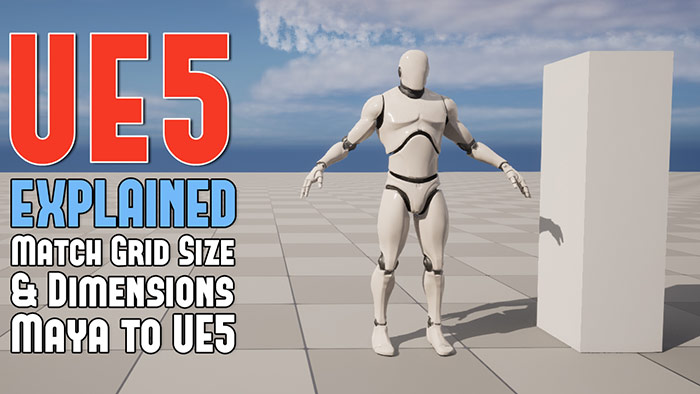
Setting the grid up in Maya to match UE5 is very important prior to modeling any prop or environment.
Here is how to get this ratio 1-to-1 and match grid spacing between Maya and Unreal Engine 5.
See full tutorial: Maya/UE5: How to Match Grid Size and Dimensions in Maya to UE5 - EXPLAINED
UE5: Are There Still BSP Brushes and Where Can I Find Them? (UE5.0+)
BSP Brushes still exist in UE5 (as of right now) and can be found. However they are hidden away. I think eventually they will be removed in favor of the new Modeling Tools in UE5.
UE5/Maya Breakdown: Creating Modular Steel Beams and Supports from O'hara Airport Terminal

In this tutorial breakdown I'm going to cover how I created modular steel beam support from O'Hare Airport terminal.
I've always liked the design and the silhouette of these steel beams. And for the longest time I've always wanted to create them and put them into a game engine.
So for this following breakdown I'm going to cover the process of creating this modular steel beam set.
See full tutorial: Maya/UE5 Breakdown: Creating Modular Steel Beams/Supports from O'Hara Airport Terminal
Resources on Migrating Projects from UE4 to UE5
I've switched over to UE5 pretty much for all my future projects. Doubt I'll be going to UE4. However I still have UE4 installed at the moment. I haven't tried migrating any UE4 projects to UE5. But i'm sure depending on complexity of your project, some things might get broken.
For more resourced on migrating UE4 projects to UE5 check out these links:
Unreal Engine 5 Migration Guide
Upgrading Your Project to UE5
Hope you enjoyed this newsletter issue and check out some previous issues for more tips, links, advice and techniques.

SUBSCRIBE & GET FREE UE5 PDF GUIDE
Subscribe to receive NEW/UPDATED and FREE "UE5 Beginner's Quick Start Guide" PDF (90 pages).

Visit this page for more info about the guide...
TOP 7 TUTORIAL COURSES FOR 2026
 Modular Environment Design Masterclass Tutorial Course
 Maya Foundation: Home-Study Course - Model and UV Environments
 Substance 3D Painter Essentials - Master Texturing
 UE5: Fundamentals Vol.1 - Create with Unreal Engine 5
 UE5: Retro Office Project - Create Beautiful Interior Env
 UE5: Master Material Creation - Create Master Materials in UE5
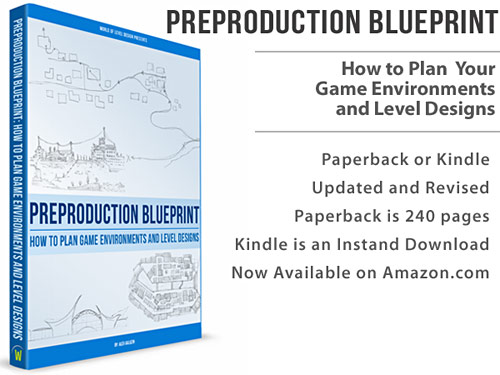
 Preproduction Blueprint: Plan Environments and Level Designs
TUTORIAL CATEGORIES
MODULAR ENVIRONMENTS MASTERCLASS

UE5: RETRO OFFICE PROJECT
MAYA FOUNDATION COURSE

SUBSTANCE PAINTER ESSENTIALS

LEARN THE PREPRODUCTION PROCESS
ABOUT WoLD & ALEXG

My name is AlexG. I am self-taught level designer, game environment artist and the creator of World of Level Design.com. I've learned everything I know from personal experimentation and decades of being around various online communities of fellow environment artist and level designers. On World of Level Design you will find tutorials to make you become the best level designer and game environment artist.
Home Terms of Use/Trademarks/Disclaimers Privacy Policy Donate About Contact
All content on this website is copyrighted ©2008-2024 World of Level Design LLC. All rights reserved.
Duplication and distribution is illegal and strictly prohibited.
World of Level Design LLC is an independent company. World of Level Design website, its tutorials and products are not endorsed, sponsored or approved by any mentioned companies on this website in any way. All content is based on my own personal experimentation, experience and opinion. World of Level Design™ and 11 Day Level Design™ are trademarks of AlexG.
Template powered by w3.css