World of Level Design™
Tutorials to Becoming the Best Level Designer and Game Environment Artist (since 2008)
UDPATE: This tutorial has been UPDATED with a new version - UDK: 22 Steps to Getting Started with UDK (in Less Than 30 Minutes)

UDK Basics covers the most essential tools and functions you need to know to get started with UDK. You'll be able to quickly jump into UDK and begin feeling comfortable using the most commonly used functions. UDK beginner tutorials.
UDK Basics Getting Started in 11 Steps Part 1/3
UDK Basics Getting Started in 11 Steps Part 2/3
UDK Basics Getting Started in 11 Steps Part 3/3
Note: UDK March 2010 was used in this tutorial. Some functions have changed, but the general ideas of the tutorial still apply. Principles are the same.
Click here to watch new updated version of this tutorial.
In UDK Basics Part 1/3 you'll learn:
- UDK Download and Installation
- Folder Structures, Launching the Editor and Creating Editor Shortcuts
- Auto-Save Function
- How to Use the Content Browser
1. UDK DOWNLOAD AND INSTALLATION
Download latest version of UDK here.
Once you download the UDK Installer, go ahead and install the UDK. The default
directory for installing UDK is C:\UDK\UDK-VersionRelease
Version Release will be the month and year of the UDK built that you downloaded.
2. UDK FOLDER STRUCTURE

1. Binaries: game/binary executables
2. Development: source code for UDK
3. Engine: engine files
4. UTGame: game files, for level design and environment creation the important
folder here is content folder. The packaged environments assets such as models,
textures, materials, sounds and such are stored here.
For Environment Creation and Level Design most important folder is UTGame --> Content --> Environments. It contains all files you need to create your map.

- .UPK extension is the UDK packages name. This is how the models, textures are stored in UDK. Think of .UPK extension as folders. Inside those folders are all the models, animations, textures, materials and similar assets are stored. You can browse the .UPK files through the UDK Editor.
- .UDK is the map file extension.
3. LAUNCHING THE EDITOR
To Launch the UnrealEditor go to Start Menu -->Unreal Development Kit --> UDK Version --> Editor

Another way to launch the editor is to create a shortcut. Go to the installation folder C:\UDK\YourUDKVersion \Binaries\
Locate UDKLift.exe
Right Click and Select Send to Desktop.

Once on you have shortcut created on your desktop Right Click the shortcut and select properties. Then in the target box under the shortcut tab add "editor" at the end of the text.
It should look something like this.

Now double-click on the desktop icon and launch the UDK Editor.
4. AUTO-SAVE
When you first launch the editor you will have Auto-Save automatically enabled. This will save your map at a chosen timed interval. You can set how often it will automatically save by LMB clicking on the arrow on bottom right, Autosave Interval and choosing the time you want.
You will find the Auto-Save feature on the bottom right of the editor. If you enable auto-save, there are a few options such as Interval and Type.

Save manually by going up to File --> Save As
5. CONTENT BROWSER
Content Browser is where you will find of the game's assets. Placing static meshes (models), textures, sounds, game entities such as player starts, weapons etc can all be done through the Content Browser. You will be using Content Browser very often.
To open Content Browser click on the top menu bar.
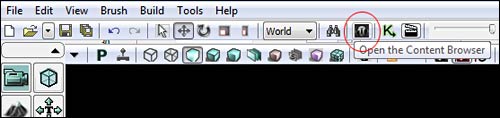
Packages is where you will find specific items contained within the UDK. Things like static meshes are contained within a package. You can search for a package or just find the package you want o use and select it.

Top of the Content Browser contains a search box as well as Filter box. This is very useful. You can sort out the content in the browser by animation sets, material instances, static meshes, sounds etc. This helps a lot when looking for items.
Box below lists full names of the items within a selected package. You can sort by clicking on the name; type, tags or path and it will re-arrange the content's preview.

Content Browser is one of the most commonly used tools in UDK. Get comfortable using the Content Browser. Spend some time navigating around it.
UDK Basics Getting Started in 11 Steps Part 1/3
UDK Basics Getting Started in 11 Steps Part 2/3
UDK Basics Getting Started in 11 Steps Part 3/3
Note: UDK March 2010 was used in this tutorial. Some functions have changed, but the general ideas of the tutorial still apply. Principles are the same.
SUBSCRIBE & GET FREE UE5 PDF GUIDE
Subscribe to receive NEW/UPDATED and FREE "UE5 Beginner's Quick Start Guide" PDF (90 pages).

Visit this page for more info about the guide...
TOP 7 TUTORIAL COURSES FOR 2026
 Modular Environment Design Masterclass Tutorial Course
 Maya Foundation: Home-Study Course - Model and UV Environments
 Substance 3D Painter Essentials - Master Texturing
 UE5: Fundamentals Vol.1 - Create with Unreal Engine 5
 UE5: Retro Office Project - Create Beautiful Interior Env
 UE5: Master Material Creation - Create Master Materials in UE5
 Preproduction Blueprint: Plan Environments and Level Designs
TUTORIAL CATEGORIES
UE5 FUNDAMENTALS VOL.1 COURSE
UE5: RETRO OFFICE PROJECT
MODULAR ENVIRONMENTS MASTERCLASS

LEARN THE PREPRODUCTION PROCESS
ABOUT WoLD & ALEXG

My name is AlexG. I am self-taught level designer, game environment artist and the creator of World of Level Design.com. I've learned everything I know from personal experimentation and decades of being around various online communities of fellow environment artist and level designers. On World of Level Design you will find tutorials to make you become the best level designer and game environment artist.
Home Terms of Use/Trademarks/Disclaimers Privacy Policy Donate About Contact
All content on this website is copyrighted ©2008-2024 World of Level Design LLC. All rights reserved.
Duplication and distribution is illegal and strictly prohibited.
World of Level Design LLC is an independent company. World of Level Design website, its tutorials and products are not endorsed, sponsored or approved by any mentioned companies on this website in any way. All content is based on my own personal experimentation, experience and opinion. World of Level Design™ and 11 Day Level Design™ are trademarks of AlexG.
Template powered by w3.css